If you’re planning to run a multi-server Minecraft network (e.g., lobby + game rooms) under a single IP, using a proxy like Velocity is the modern recommended method. This guide shows you how to set it up via your Expanse Panel.
🧰 Prerequisites
-
At least two Minecraft servers (backend servers) plus one dedicated server instance for the Velocity proxy.
-
Ensure all servers are on the same location for stability (recommended).
-
Access to the Expanse Panel for each server and file-manager/console access.
1. Create Your Backend Minecraft Servers
Via the Expanse Panel:
-
Create the servers you’ll use for game modes (e.g.,
lobby,bedwars,survival). -
Note each server’s IP & port as listed in the Panel.
2. Install Velocity on the Proxy Server
-
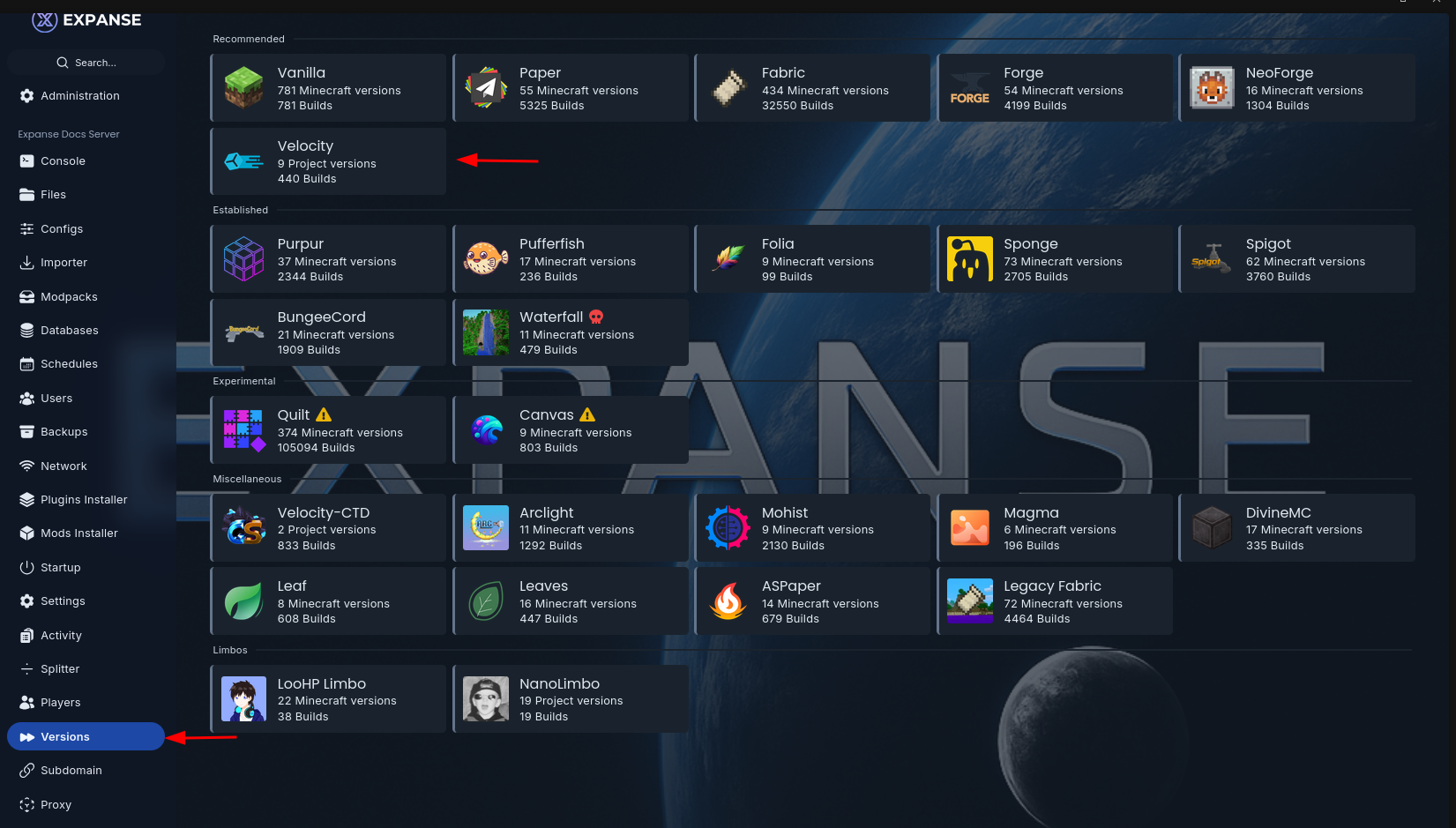
In the Panel, go to the Versions tab of the dedicated proxy server.
-
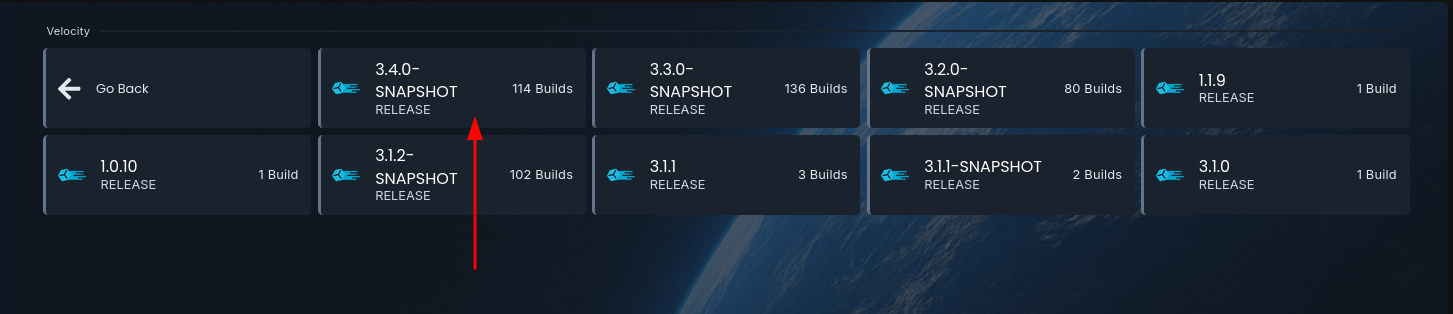
Change the server “egg” (or pick the server type) to Velocity and install the latest stable version.
-
Start the server once so that it generates default config files (you’ll see “Server marked as running” in console).
3. Configure the Proxy Files
Via the Files tab of the proxy server:
-
Open
velocity.toml. -
Locate the
[servers]and[forced-hosts]sections. -
Configure like:
[servers]
lobby = "IP_OF_LOBBY:PORT"
bedwars = "IP_OF_BEDWARS:PORT"
...
try = ["lobby", "bedwars"]
(Replace with your actual server names/addresses.)
-
In
[forced-hosts], map any custom domain hostnames to your internal server aliases.
4. Forward Player Data & Secure Connections
-
In
velocity.toml, set:player-info-forwarding-mode = "modern"(Modern forwarding gives UUID/skin support and is more secure.)
-
Open the
forwarding.secretfile — copy this secret string. -
On each backend server:
-
In
server.properties, setonline-mode=false. -
In
config/paper-global.yml(for Paper or compatible forks): underproxies.velocity, setenabled=true,online-mode=true, andsecret=<the secret you copied>.
-
-
Save changes and restart all servers (proxy + backends).
5. Start All Servers & Test
-
Start the proxy server.
-
Start each backend server.
-
In Minecraft, connect to your proxy IP.
-
Once connected, try
/server <name>or teleport via plugin to move between game modes – verify everything works smoothly.
⚠️ Important Notes
-
Running backend servers in
online-mode=falseis necessary for the proxy to authenticate correctly, but you must ensure the forwarding secret is set correctly — otherwise you risk unauthorized direct connections. -
If you use other forks (e.g., Fabric modded backend) or older server versions (< 1.13), some forwarding modes may not work; refer to plugin/mod-specific docs.
-
Keep your proxy server’s version and all backend versions compatible (e.g., same Minecraft major version) to avoid login/auth issues.
🔍 Additional Tips
-
Use the Expanse Panel’s Files → Archive Restore function to backup
velocity.toml,forwarding.secret, and each backend’s config before making changes. -
Label your backend servers clearly in the Panel (e.g.,
bedwars-fr,survival-us) so you know which IP/port goes into the proxy config. -
For multi-region setups, ensure the proxy is located in the same region (node) as the backend servers to keep latency minimal.
-
Monitor the proxy’s console logs via Panel → Console for “Listening on /0.0.0.0:25565” or similar lines — this confirms the bind succeeded.
🛠 Need Help?
If you run into issues—such as players being unable to join, skins/UUIDs missing, or /server command not routing properly—please open a support ticket via the Expanse Panel. Provide:
-
Proxy server logs (first startup + error lines)
-
Backend server logs
-
Config snippets from
velocity.tomlandpaper-global.yml -
Versions of Minecraft and server types used
We’ll assist you in diagnosing the forwarding/alias issue.
Please contact us if you face any difficulty.