You can easily import an existing MySQL database into your server using our Panel.
This allows you to move plugin data, player stats, and other important information from your previous host without manual setup.
🔹 Importing a Remote Database
-
Log in to the Panel.
-
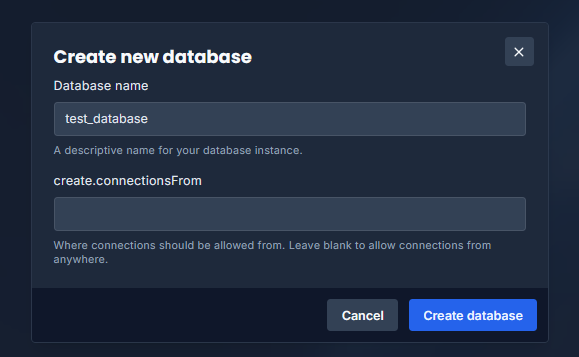
Create a new database under the Databases section of your server.
-
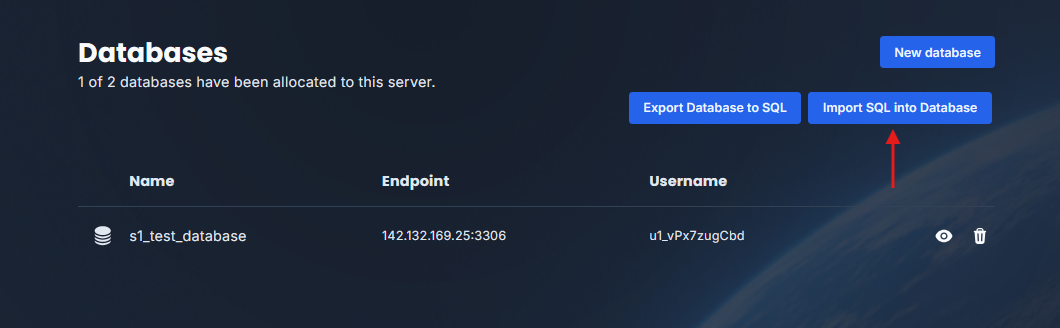
Once created, click the Import button.
-
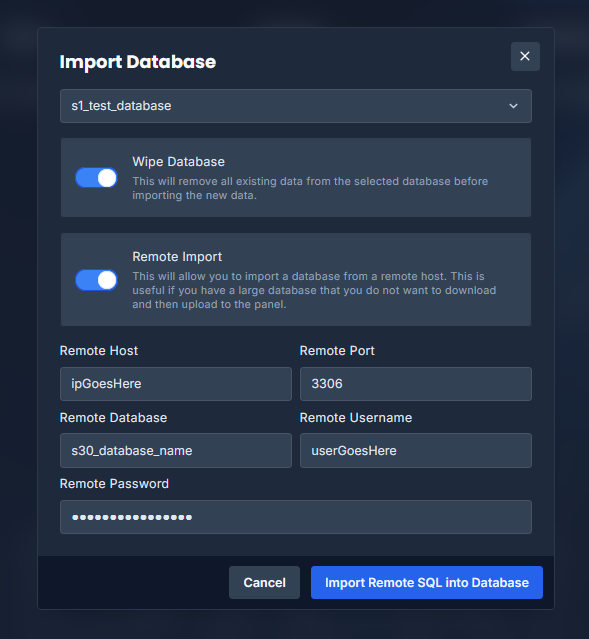
In the import prompt, fill in the remote database connection details from your old host:
-
Host
-
Port
-
Username
-
Password
-
Database name
-
⚠️ Note: Database imports are limited to 5 GB in size.
If your database is larger, please compress and import it manually via SQL dump.
📥 Importing a .SQL Database Dump via File Manager
If you already have a .sql file (database backup), you can import it directly using the File Manager.
-
Head to database section in your respective server
-
Create a new database if you do not have one created
-
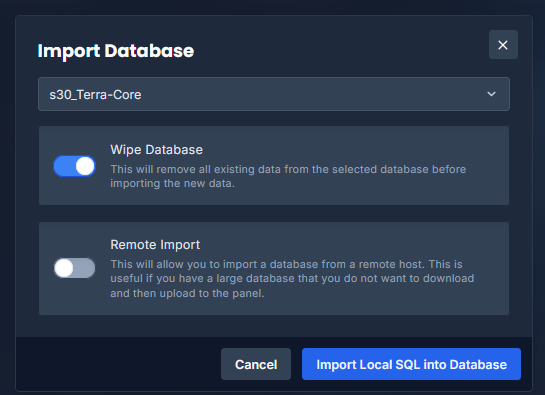
Select the database you want your
.sqlto be imported into -
UNCHECK the Remote Import popup
-
Click on Import Local SQL into Database
🧩 Example Plugin Configurations using MySQL
Here are examples of how to connect your Minecraft plugins to your MySQL database once imported:
LuckPerms
storage-method: MySQL
data:
  address: your-mysql-host:3306
  database: your_database_name
  username: your_username
  password: your_password
LiteBans
sql:
  driver: MySQL
  address: your-mysql-host:3306
  database: 'your_database_name'
  username: 'your_username'
  password: 'your_password'
CoreProtect
use-mysql: true
table-prefix: co_
mysql-host: your-mysql-host
mysql-port: 3306
mysql-database: your_database_name
mysql-username: your_username
mysql-password: your_password
Plan
Database:
  Type: MySQL
  MySQL:
    Host: your-mysql-host
    Port: 3306
    User: your_username
    Password: your_password
    Database: your_database_name
    Launch_options: "?rewriteBatchedStatements=true&useSSL=false&serverTimezone=UTC"
AdvancedBan
UseMySQL: true
MySQL:
  IP: your-mysql-host
  DB-Name: your_database_name
  Username: your_username
  Password: your_password
  Port: 3306
  Properties: 'verifyServerCertificate=false&useSSL=false&useUnicode=true&characterEncoding=utf8'
✅ That’s it!
You’ve successfully imported your MySQL database and configured your plugins to use it.
If you encounter any connection issues, ensure your credentials and host IP are correct, and that your database is accessible from your server.
Please contact us if you face any difficulty.