Our Server Importer feature allows you to easily import an existing server from another host into our Panel - saving time and avoiding the need to manually download and upload large files.
🧠 What It Does
The Server Importer automatically transfers your files (and optionally databases) from your old host into your new server with us.
💡 Note: You can also import databases hosted on your previous provider!
Check out our database import guide for step-by-step instructions.
🔐 Gathering Your Remote S/FTP Credentials
Before starting, you’ll need the credentials to connect to your previous host’s (S)FTP server.
If you’re importing from another game hosting provider, you can usually find this information in their panel.
You’ll need:
-
Server Type: FTP, FTPS, or SFTP
-
Host & Port
-
Username
-
Password
⚙️ Tip: We strongly recommend compressing your files (ZIP or TAR) before starting the import.
This can significantly increase transfer speed and reduce potential connection issues.Do specify that file in source so as to fetch only that specific file instead your server will transfer additional unnecessary data
🚀 Starting the Server Import
-
Log in to the Panel.
-
Select the server you want to import files into.
-
From the sidebar, click on Server Importer.
-
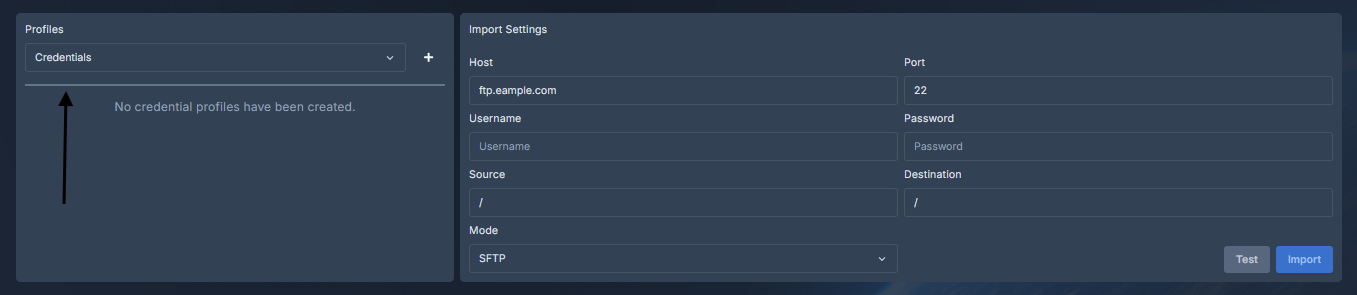
Fill in the form with your remote host’s S/FTP credentials.
-
Leave Base Directory as
/to import all files, or specify a sub-folder if you only want to import part of your old setup. -
(Optional) If you have a compressed archive of your files, move it to a folder in your old host and specify that file’s path — the importer will only fetch that archive.
Once the import begins, you can monitor progress in the Console tab.
The transfer log and progress updates will appear there in real time.
✅ You’re all set!
With the Server Importer, moving your Minecraft or game server to Expanse is quick, reliable, and hassle-free.
Please contact us if you face any difficulty.